The Send a Slack Message step posts a message to one or more Slack channels during a deployment or runbook run. You can use it to notify your team when a deployment succeeds or fails, or at any point in your deployment process.
The Send a Slack Message step is available from Octopus Server version 2026. The title and Block Kit messages are available from 2026.
You can add this step to a process at any time. If a Slack workspace isn’t connected yet, the step editor shows a prompt to set one up. See Slack integration for instructions.
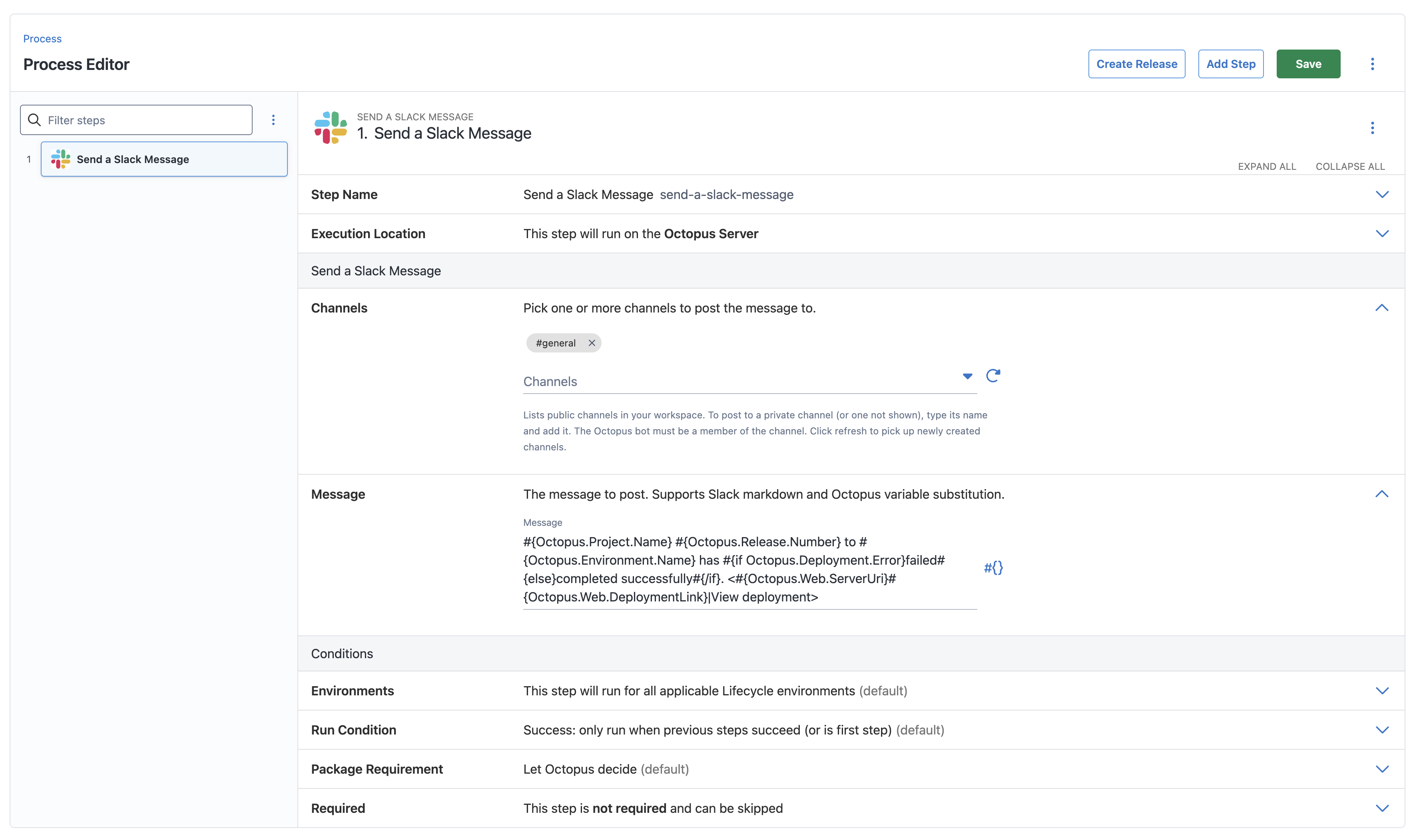
Add the step
- Navigate to your project’s deployment process and click Add step.
- Search for and select Send a Slack Message.
- Give the step a short memorable name.
- Select one or more Channels to post to. For more information on what channels the Slack app can post to, see public and private channels.
- Optionally, enter a Title to show as a heading above the message.
- Choose a Message format and enter the message to post. See message formatting and Block Kit messages.
- Set conditions to determine when the step runs.
- Save the deployment process.
Message formatting
With the Plain text message format, the message field supports Slack markdown formatting and Octopus variable substitution.
Example
#{Octopus.Project.Name} #{Octopus.Release.Number} to #{Octopus.Environment.Name} has #{if Octopus.Deployment.Error}failed#{else}completed successfully#{/if}. <#{Octopus.Web.ServerUri}#{Octopus.Web.DeploymentLink}|View deployment>See system variables for the full list of variables available during a deployment.
Block Kit messages
Select the Block Kit message format to post a message built from Slack Block Kit blocks, such as sections, buttons, and dividers.
Enter the blocks array only. If you design your message in Block Kit Builder, copy the value of the blocks property, not the whole message.
The payload must be a non-empty JSON array, every block needs a string type, and Slack allows at most 50 blocks per message. Octopus checks this when you save the deployment process.
If you enter a Title, Octopus adds it as a header block above your blocks, so it counts towards the 50-block limit. Titles are plain text and are truncated at 150 characters.
The payload supports Octopus variable substitution. Variables that can contain quotes or newlines, such as release notes, should use the JsonEscape filter so they don’t break the JSON. When the payload contains a variable, Octopus can’t validate it until the deployment runs, so problems are reported then.
Example
[
  {
    "type": "section",
    "text": {
      "type": "mrkdwn",
      "text": "*#{Octopus.Project.Name}* #{Octopus.Release.Number} to #{Octopus.Environment.Name} has #{if Octopus.Deployment.Error}failed#{else}completed successfully#{/if}."
    }
  },
  {
    "type": "actions",
    "elements": [
      {
        "type": "button",
        "text": { "type": "plain_text", "text": "View deployment" },
        "url": "#{Octopus.Web.ServerUri}#{Octopus.Web.DeploymentLink}"
      }
    ]
  }
]