Connecting a Slack workspace to Octopus lets you send subscription events and deployment notifications to Slack channels. Once connected, you can:
- Configure subscriptions to post event digests to channels.
- Add a Send a Slack Message step to your deployment or runbook processes.
- Optionally enable link unfurling, so Octopus release URLs expand into deployment status cards when someone pastes them in a Slack channel.
Slack integration is available from Octopus Server version 2026.
Prerequisites
You need permission to install apps in your Slack workspace. If you don’t have this permission, ask a Slack workspace owner or admin to complete the setup.
For link unfurling, your Octopus Server must be reachable from the internet so Slack can deliver events to it.
Connect Octopus to Slack
To connect Octopus to Slack, navigate to Configuration ➜ Settings ➜ Slack integration and click Add Slack Connection. The wizard in Octopus will walk you through the steps outlined below.
1. Create your Slack app
Octopus generates a JSON app manifest pre-configured with the correct redirect URL and OAuth scopes. The wizard displays this manifest for you to copy.
If you want to enable link unfurling, check Enable link unfurling before copying the manifest. Octopus adds the Events API subscription URL, the link_shared bot event, your server’s hostname as an unfurl domain, and the extra scopes to the manifest automatically.
In a new tab, go to Slack API Apps and:
- Click Create New App.
- Choose From an app manifest.
- Select your workspace.
- Paste the manifest Octopus generated and click Next, then Create.
The manifest uses your Octopus server’s public address as the OAuth redirect URL. When unfurling is enabled, it is also used as the Events API request URL. If the URL shown doesn’t match the address users access Octopus at, update redirect_urls (as well as request_url and unfurl_domains for unfurling) in the manifest before pasting. You can configure the public URL under Configuration ➜ Nodes.
Once you’ve created the Slack app, return to Octopus and click I Created The App.
2. Add credentials
In your new Slack app, go to Basic Information and copy the Client ID and Client Secret. Paste these into Octopus.
If you checked Enable link unfurling, also copy the Signing Secret from the same Basic Information page and paste it into the Signing Secret field. Octopus uses this to verify that event payloads come from Slack.
Click Save And Continue.
3. Authorize Octopus in Slack
Click Open Slack To Authorize. This opens Slack’s OAuth consent page in a new tab. Review the requested scopes and click Allow.
Once you approve, Octopus detects the connection automatically and moves to the next step.
Scopes
Octopus requests the following scopes when authorizing:
| Scope | Purpose |
|---|---|
chat |
Post messages as Octopus |
chat |
Post in channels not invited |
channels |
List public channels |
groups |
List private channels invited to |
team |
Read workspace name |
users |
Read the bot user’s display name |
When link unfurling is enabled, Octopus also requests:
| Scope | Purpose |
|---|---|
links |
Detect Octopus links shared in channels |
links |
Post unfurl cards when links are shared |
4. Confirm the connection
Your workspace is now connected. You can optionally send a test message to #general to confirm everything is working before finishing.
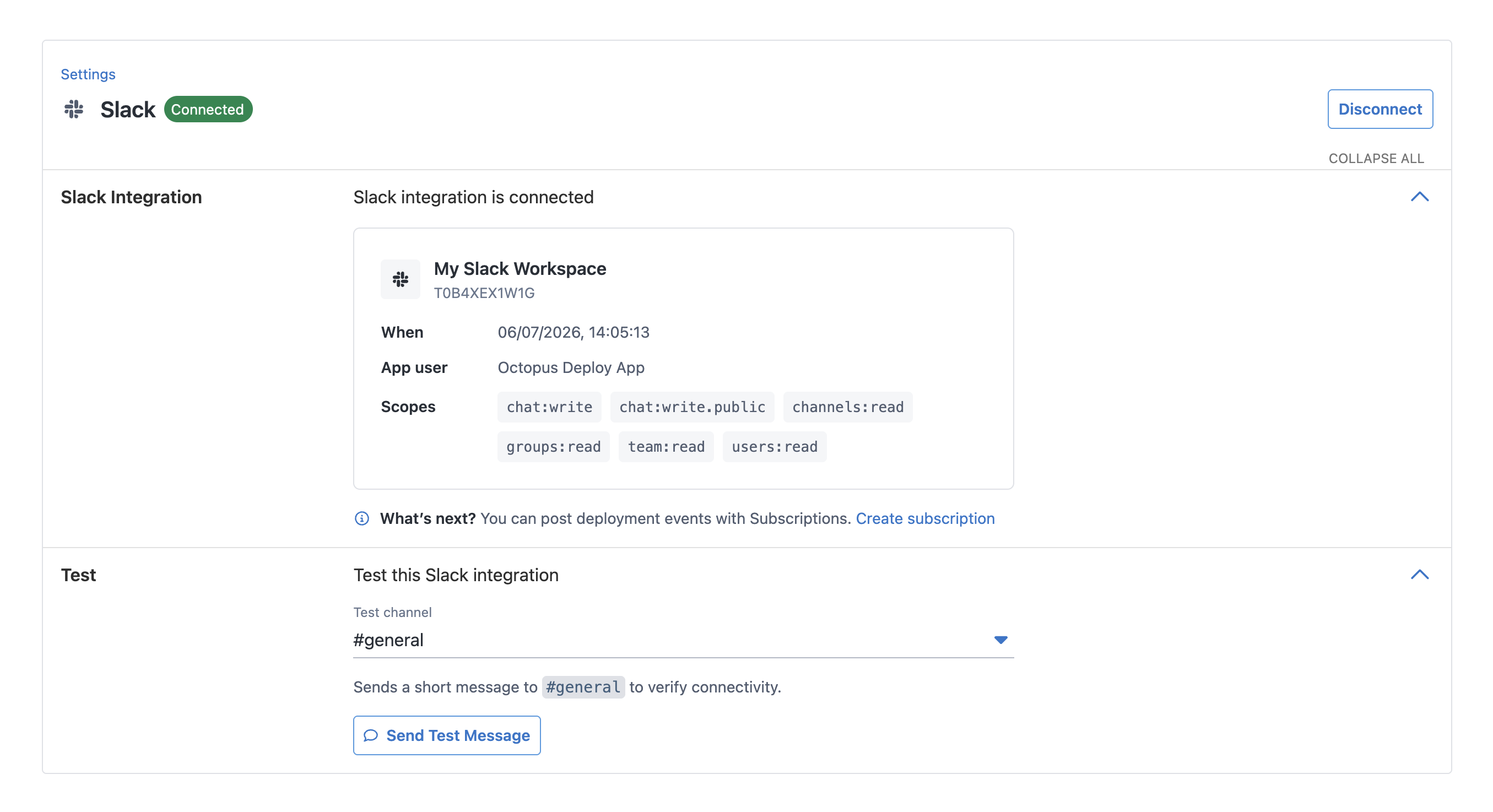
Test the connection
After connecting, you can send a test message at any time from Configuration ➜ Settings ➜ Slack integration. Select a channel and click Send Test Message. Octopus posts a short message to the selected channel so you can confirm the bot is working.
Link unfurling
When link unfurling is enabled, anyone in the connected workspace can paste an Octopus release URL into a channel and Slack will automatically expand it into a deployment status card. No step or subscription configuration is needed - it works wherever URLs are shared.
Supported URLs
Unfurling activates for two URL shapes:
- Release page -
.: shows all phases in the release lifecycle.. . /Spaces-N /projects /{project} /deployments /releases /{version} - Specific deployment —
.: shows the status of that specific deployment.. . /Spaces-N /projects /{project} /deployments /releases /{version} /deployments /Deployments-N
Other Octopus URLs (projects, runbooks, tasks) are not expanded.
What the card shows
The card displays the project name and release version as a heading, then one row per lifecycle phase showing the phase name and deployment status:
| Icon | Meaning |
|---|---|
| ✅ | Deployment succeeded |
| ❌ | Deployment failed |
| ⏳ | Deployment is executing |
| 🕓 | Deployment is queued |
| 🚫 | Deployment was canceled or timed out |
| ➡️ | Phase is active but has no deployment yet |
| ⬜ | Phase is pending |
The card footer shows when the status snapshot was taken. Paste the URL again to get a fresh card.
If Octopus cannot find the space, project, or release - for example because it was deleted by a retention policy, or because Octopus lacks permission to read it - the card shows a short explanation instead of the status rows.
Permissions
Octopus reads release and deployment data as the system principal, not as the person who pasted the URL. Space-level visibility applies: if Octopus can see the space and project, the card is shown; if not, nothing is posted. No Octopus login is required from the Slack user.
Public and private channels
By default the Slack app can post to any public channel in your workspace without needing to be invited.
For private channels, you will need to type the name of the channel when selecting which channel to post to. The Slack app must be a member of the channel. See the Slack documentation on apps for instructions on adding the app to a channel.
Disconnect
To disconnect the Slack integration, go to Configuration ➜ Settings ➜ Slack integration and click Disconnect. This removes the stored credentials and OAuth token. You can reconnect at any time by running the wizard again.
What’s next
- Subscriptions: configure Octopus to post event digests to Slack channels.
- Send a Slack Message step: post messages to Slack as part of a deployment or runbook process.